I have an old Dell laptop. I don’t know exactly how old it is, but it’s a model that stopped being made in 2017. I normally run Xubuntu on it and it’s a very capable machine.
I regularly wipe it to repurpose it for various tasks, so I decided I’d try installing NetBSD on it and see what all the fuss was about. The installation process was a bit rough. I’m by no means a power user, I can barely write terrible PHP scripts and even worse Python code, but I’ve been a Linux user for 2½ years so I’m about as techy as an average Joe can get. I’m posting my experience in the hope it will be helpful. Please do not interpret this as a how-to guide, but it might point you in the right direction if you have the same problems I had.
The first issue was getting the installer on a USB drive. I clearly did something wrong during this step, because when I booted the laptop from that USB drive, I was greeted by a wall of green text:
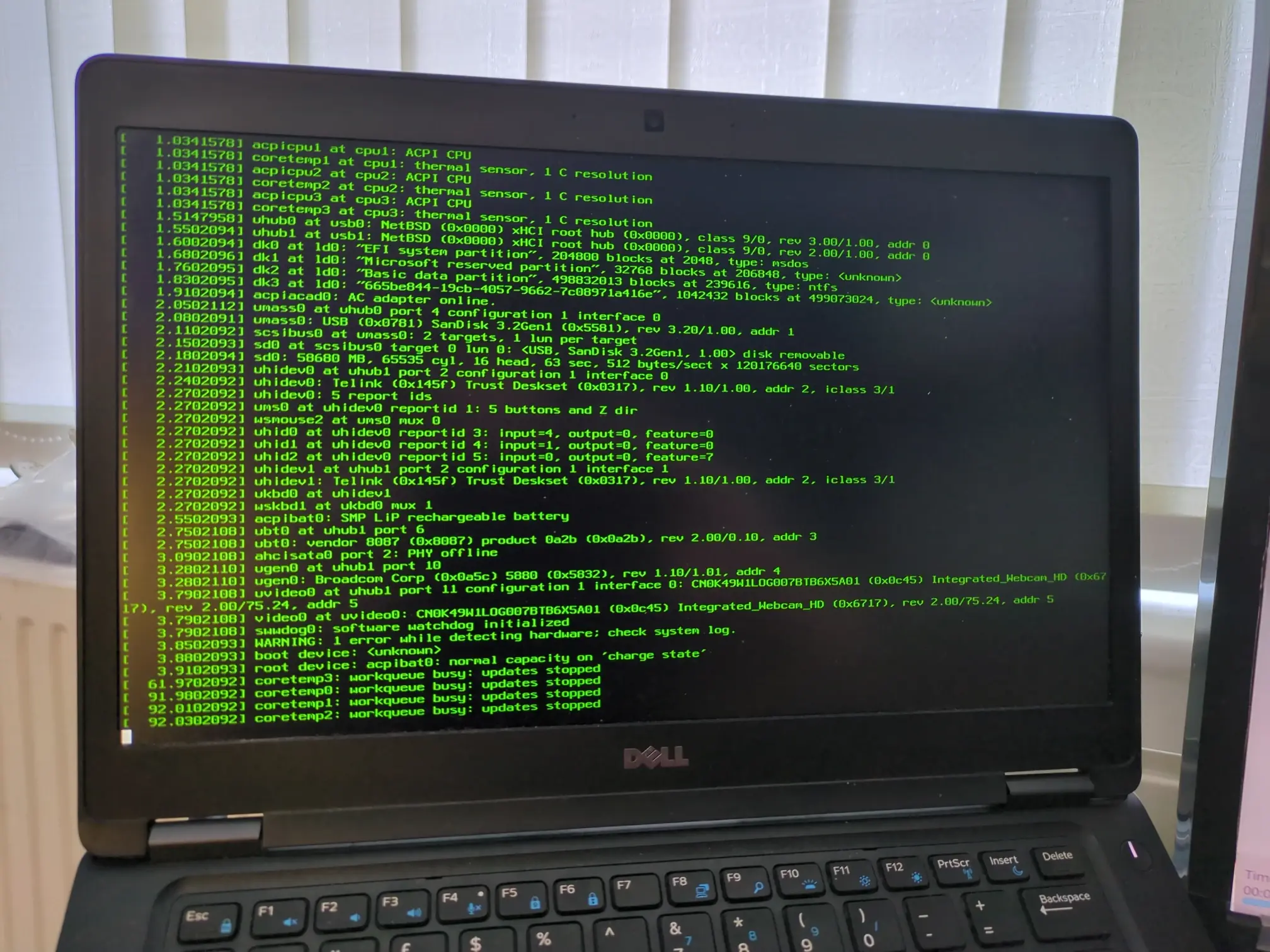
It wasn’t at all clear that it was waiting for my input. See the fifth line from the bottom, “root device:” ? Yeah, that’s a prompt. I was supposed to type something there. To be clear: this prompt should not come up. If it does, you’ve done something wrong.
I tried using Ventoy and the DVD ISO image. That didn’t work either, perhaps unsurprisingly. At that point, it was lunchtime, so I decided to go back to it another day.
Today is that another day. I downloaded a script called EasyDD and used it to decompress the NetBSD installer image directly onto my USB drive. This was scary, one mistype and I could’ve reformatted my entire computer, but with an abundance of caution1 I was able to get it written.
I plugged it into my laptop, rebooted, and… it just worked. It really was that easy. It booted straight into the installer. Naïvely, I accepted all the defaults, reasoning that I’d end up with a usable system2. And, to my surprise… I absolutely did. It booted perfectly.
Then I rebooted my laptop. And it tried to boot into Ubuntu. Evidently, the installer hadn’t wiped all trace of my previous operating system, as I’d expected it would. It’d just rendered it unusable.
Learning my lesson, I tried to reinstall. And I got the wall of green text again. One more run of EasyDD to reimage the USB drive, and the installer was working again. This time, before I installed, I used GPartEd to completely wipe my laptop’s hard drive3, which definitely improved things.
After I went through the installer, I went to the Config menu and ran through the options in this order:
1. a: Configure network. This was a relatively simple matter. Pick the correct network adapter (or try them all in turn until one works) and follow the prompts.
2. b: Timezone. Europe > London for me.
3. f: Fetch and unpack pkgsrc. I accepted all the defaults.
4. e: Enable installation of binary packages. Again, I accepted all the defaults.
5. g: Enable sshd - YES. This will prove handy if I have to debug things later.
6. h: Enable ntpd to sync time over network - YES.
7. i: Run ntpdate to set time over network at boot - YES. No more setting the clock manually for me.
8. k: Enable xdm (X Display Manager) - YES. Without this, you won’t get a GUI!
9. o: Add a user. I created a username and password and added myself to group wheel, which is vital to be able to use the su command and finish setup.
10. x: Finished configuring.
After I was done, I rebooted, and I was in.7
By default, NetBSD has a very barebones desktop environment. I’m sure it’s fine, but it’s not for me. Fortunately, Xfce is available, which is a fine alternative. All the information you need to get it working is in the manual, but here’s how I did it:
After logging in as myself, in the terminal window that’s already open, I typed
su
followed by
pkgin install xfce4 nano zsh firefox sudo
to install xfce4 along with a bunch of stuff I’d need later.
That took a few minutes. Once it finished, all I had to do was reconfigure my system so it’s compatible with Xfce and launches into it by default. It looks more complicated than it is, just follow along and you’ll be fine.
exit
cp /etc/X11/xinit/xinitrc ~/.xinitrc
then
su
nano /etc/X11/xdm/xdm-config
And I added the line DisplayManager*authName: MIT-MAGIC-COOKIE-1 to the bottom of the file. This is necessary for Xfce to work. I also enabled dbus:
cp /usr/pkg/share/examples/rc.d/dbus /etc/rc.d/
echo ”dbus=YES” >> /etc/rc.conf
service dbus start
exit
and we’re done with root mode. The next commands were more or less straight from the manual:
cd ~
chmod u+w ~/.xinitrc
ln -s .xinitrc ~/.xsession
nano ~/.xinitrc
All I had to do here was scroll down to the bottom and change the line exec $ctwm -W to instead read exec startxfce4. Ctrl+X exits nano (it prompts to save changes).
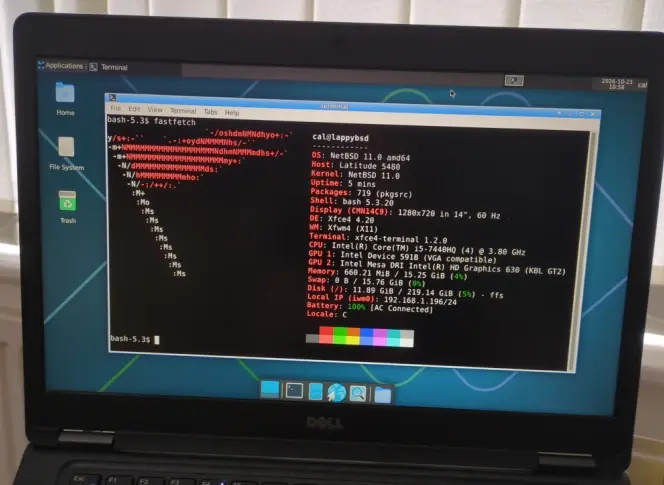
That was it. I rebooted, logged back in, and I was in Xfce. From here, the experience is very similar to that of Xubuntu, which was my daily driver on my laptop. Whether it will ever be again, I don’t know. I did install zsh and change my login shell to it4, and I did install Firefox5 (which worked right out of the box), but that kind of customisation is relatively straightforward.
Some other workarounds
Rebooting and powering off
In a previous version of this blog post, I neglected to enable dbus, which caused the Xfce commands to log off, reboot, and power off to not work properly. This is how I worked around that. This workaround is unnecessary with dbus enabled, but doing it will get sudo working.
1.
su
nano /usr/pkg/etc/sudoers
2. Uncomment6 the line starting with Cmnd_Alias REBOOT (it was the second command alias line for me)
3. Scroll all the way down to the bottom
4. Uncomment6 the two lines that start with %wheel
5. Change the second such line to end NOPASSWD: REBOOT instead of NOPASSWD: ALL
6. If you’re worried, change the %wheel at the start of that line to exactly your username
7. Add launchers to the panel at the top of the screen to “sudo reboot” and “sudo poweroff” by right-clicking a blank space on the panel and using the GUI to add a launcher at a time.
No reboot needed. Just click the right launcher when you’re ready to reboot or power off.
Getting Firefox (Nightly) to work on my VM
Nightly worked great on my laptop straight out of the box, but it crashed with an I/O error when I tried to run it in a VM. To get it working, I had to manually edit my VM’s options to disable a feature of modern computers called AVX2. This may imply that Nightly might have issues with very modern processors.
1. I shut down the VM.
2. In Virt-Manager’s main interface (not the VM itself’s settings), I went to Edit > Preferences and I turned on “Enable XML editing”, then hit Close.
3. I opened the VM’s virtual hardware details (the i button on the toolbar), navigated to CPUs > XML, then, I changed the CPU section so it read:
  <cpu mode=”host-passthrough” check=”none” migratable=”on”>
    <feature policy=”disable” name=”avx2”/>
  </cpu>
(the middle line is the important one, make sure it goes between the cpu and /cpu lines).
4. I rebooted the VM and Nightly just worked.
Footnotes
- Unplugging the USB device I intended to write to, running EasyDD, cancelling the process, replugging it, running EasyDD again, and noting which device appeared on the list was the way I chose to do it. There are probably safer ways, but this worked for me. ↩
- Technically correct, but the default installation is extremely light. You don’t get a package installer, you don’t get a GUI, hell you don’t even get networking! So that’s not useful for general use. ↩
- I’m sure the installer has some way to do that for you, but I couldn’t figure it out. The installer is, as I said before, a bit rough. ↩
- chsh -s /usr/pkg/bin/zsh, then reboot. ↩
- I did this at the same time I installed Xfce, because Xfce has some weirdness if it doesn’t have anything in its applications menu. ↩
- This means removing the # symbol from the start of the line. Leave the rest of the line intact. ↩
- To replicate my success beyond this point in a virtual machine (I use Virt-Manager with a KVM/QEMU VM), I had to modify the VM setup from the default. I shut the VM down, opened the VM settings, navigated to the Video hardware device, and changed the model from Virtio to VGA. Then, to make Xfce4 work, I had to Add hardware and add an RNG (I accepted the defaults). That did it. ↩